
Verify your age with the Emblem app
Set up your Emblem Pass on your phone, then use it to privately confirm your age on websites that use Emblem.
Free to download. Requires iOS 17 or later on iPhone, or Android 11 or later.
On a computer? Scan to get the app
Point your phone's camera at this code to open this page on your phone, then choose your app store.
This code only opens the download page. It doesn't approve an age check.
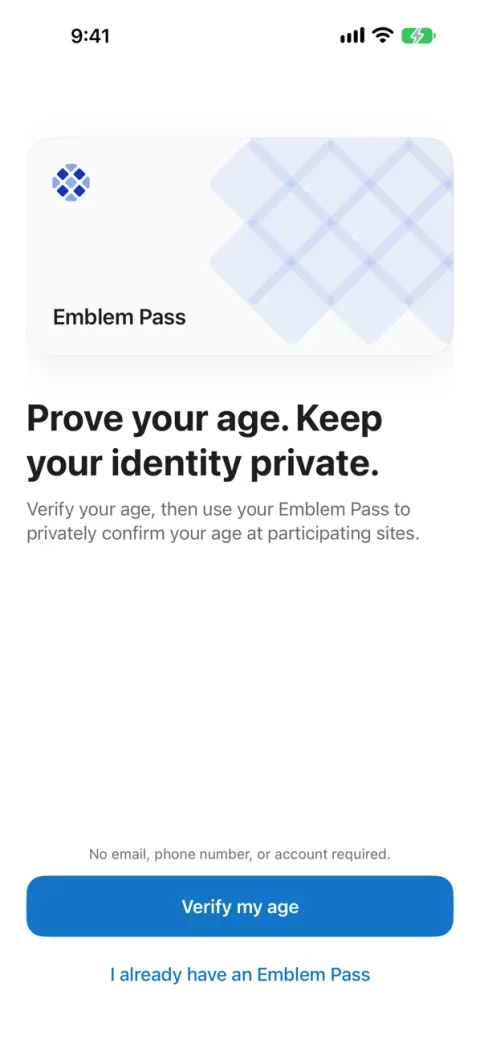
Get set up in three steps
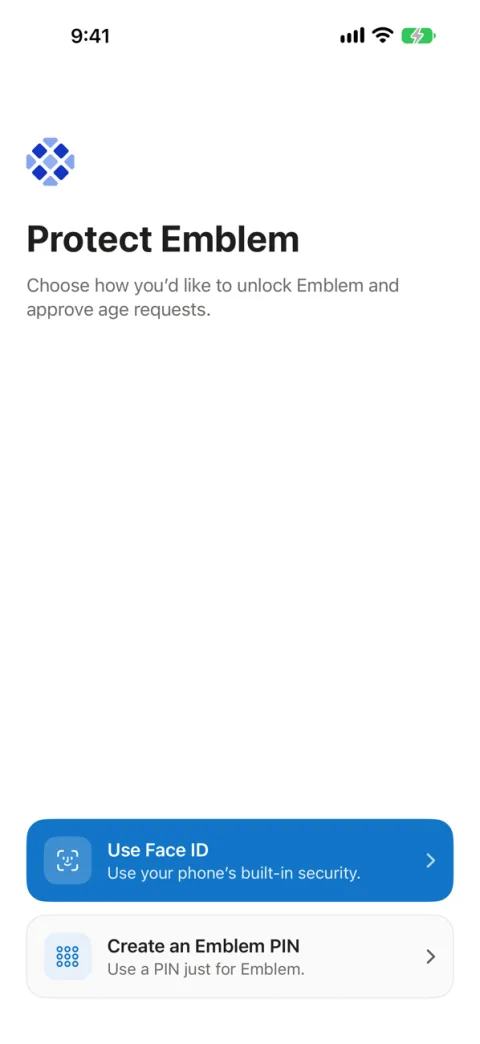 Step 1
Download Emblem
Get Emblem from the App Store or Google Play. Choose how to unlock it: Face ID, your fingerprint or your phone's screen lock, or a six-digit Emblem PIN.
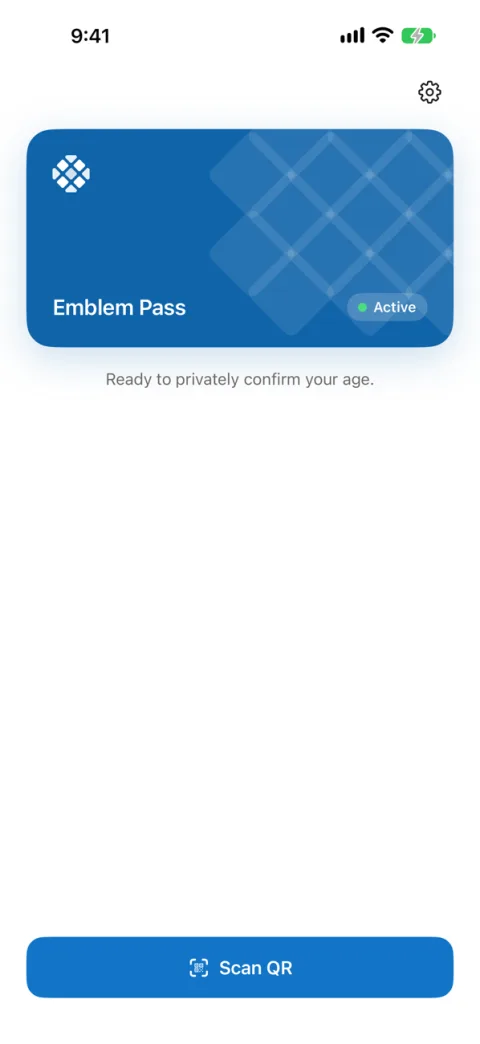 Step 2
Set up your Emblem Pass
Tap Verify my age. You'll take a quick selfie, then scan your ID. When the check is done, your Emblem Pass is ready on your phone.
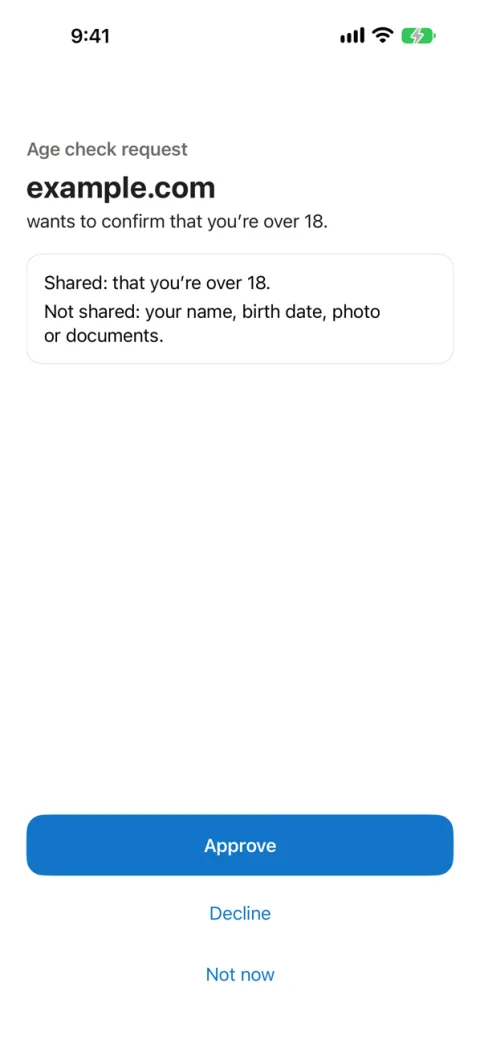 Step 3
Confirm your age on websites
When a participating website asks you to confirm your age, Emblem shows who is asking and what will be shared. Tap Approve, or decline.
Already have an Emblem Pass?
You don't need to start over. In the app, choose I already have an Emblem Pass.
New phone, or set up on a website
- Install Emblem and choose I already have an Emblem Pass.
- Tap Use my passkey and sign in with the passkey you use for Emblem, including one you created on a website.
- Your Pass is added to this phone. If your earlier verification still qualifies, you won't need to scan your ID again.
On iPhone, sign in with the same Apple Account you used before. If your passkey is on another device, choose Use a passkey from another device.
Used the original Emblem app?
- Update or install Emblem and choose I already have an Emblem Pass.
- Tap Upgrade from the original Emblem app and confirm your phone number with a one-time text code.
- Save the passkey when asked. Your verification carries over.
You only do this once. After that you'll use your passkey instead of text codes.
Confirming your age on a website
Look for Use the Emblem app on websites that offer it.
Website open on this phone
- On the website, choose Use the Emblem app, then tap Open Emblem.
- Emblem opens with the request. Check the website name and what will be shared, then tap Approve.
- When you see Verified, switch back to the browser where you started. The website finishes there by itself.
On iPhone, tap your browser's name at the top left of the screen, or switch apps. On Android, switch back from Recent apps. Installing Emblem doesn't reopen an age check you already started: set up your Pass, then go back to the website and tap Open Emblem again.
Website open on a computer
- On the computer, choose to use the Emblem app. The website shows a QR code for the age check.
- On your phone, open Emblem and tap Scan QR, or scan the code with your phone's camera.
- Approve the request on your phone. The website on your computer continues by itself.
A code shown by a website is an age check request. The code on this page only opens the Emblem download page.
Your privacy
What websites learn
- That you meet the website's age requirement.
- Some websites also ask for a private ID that lets them recognize you when you return, or when and with which service your age was checked. Emblem lists what will be shared before you approve.
- Your name, birth date, photo and ID documents are not shared with websites.
Your ID check
- The selfie and ID check is done by SafePassage, Emblem's verification partner.
- Your photos are deleted when the check ends, and Emblem never receives them.
- No email, phone number or account is needed to set up a new Emblem Pass.
Help
Where can I use my Emblem Pass?
On participating websites that use Emblem for age checks. Not every website that checks ages uses Emblem.
Will I have to verify my age again?
Usually not. Your Emblem Pass doesn't expire, and you can add it to each phone you set up. Some websites may ask for a different kind of check, and recovering your Pass or a security issue can mean verifying again.
Emblem didn't open, or I can't finish
Make sure Emblem is installed and your Pass is set up. Then go back to the website, choose Use the Emblem app and tap Open Emblem again, or scan its code from the Emblem app. The website may also offer another way to verify. If you're still stuck, email support@emblemapp.com and tell us which phone you use and which step didn't work.
How do I delete my Emblem Pass?
In the app, open Settings and choose Delete my Emblem account. Websites where you already used Emblem keep what was shared with them.
I created a business account or bought a business plan by mistake
Business accounts at app.emblemapp.com are for websites that add Emblem. They can't verify your own age, so use the Emblem app instead.
Downloading the app doesn't cancel a business subscription or change charges already made. To stop future charges, sign in to your business account, open Billing, select Manage Billing, then choose Cancel subscription and confirm. The plan stays active until the end of the current billing period and then ends without renewing. Any usage charges for that period are billed when it ends.
For help with a charge you've already paid, or to close the business account, email support@emblemapp.com from the email address you used for that account.
Run a website? Business accounts are for adding Emblem age verification to your site.